Committee Setup
The Setup page (Alt+1) is your committee's control panel — check it before your session starts.
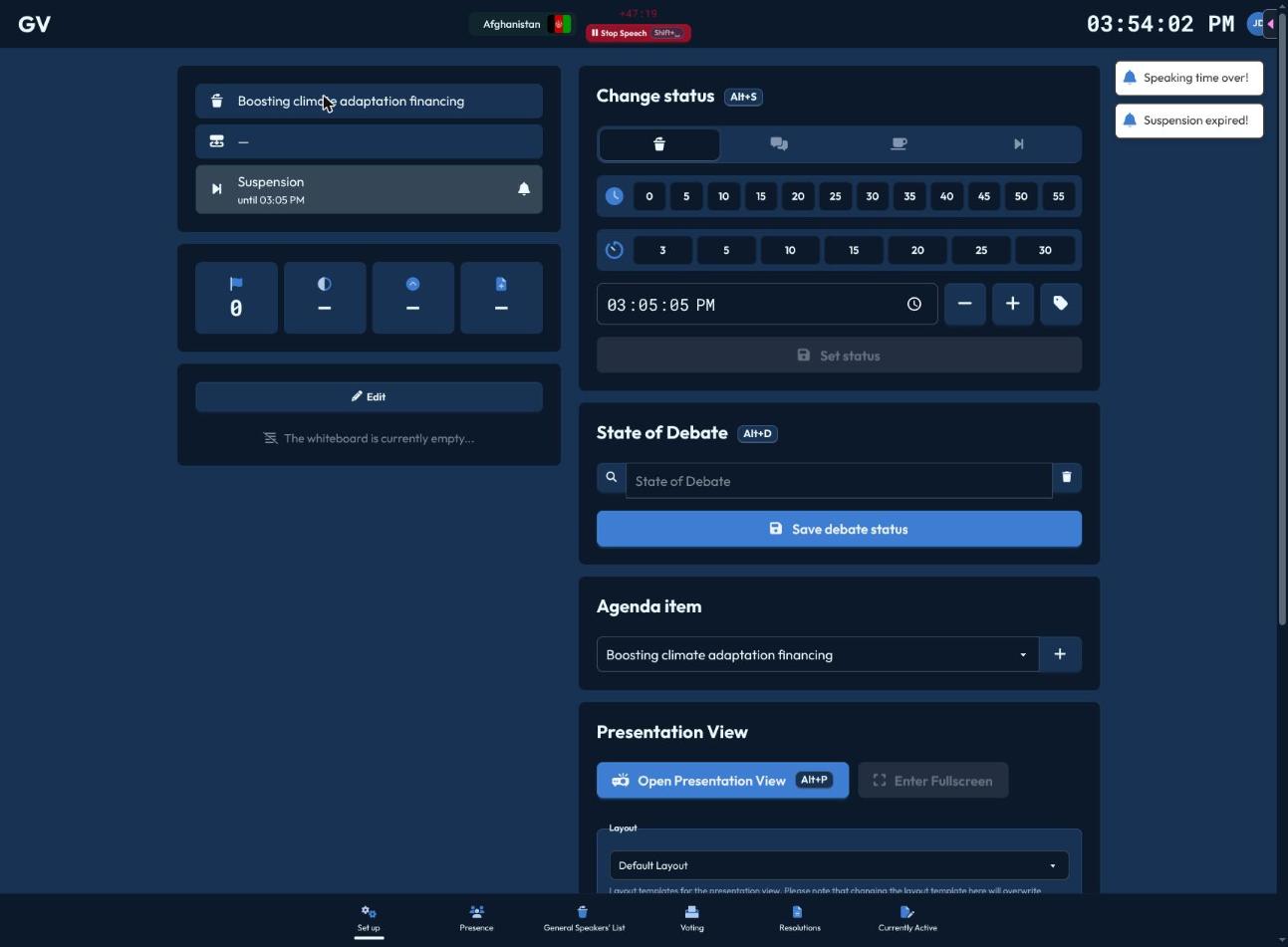
The current agenda item, state of debate, status, and live majority thresholds are visible here, and throughout the rest of the chair interface.
Set Status / State of Debate
Two cards embed the same controls available via the global Alt+S / Alt+D shortcuts — see Agenda & State of Debate for the full details of both.
Agenda Item
A dropdown lists every agenda item; a + button lets you add a new one by typing its title. Switching or adding an agenda item is instant — no confirmation needed.
Presentation Mode
- "Open Presentation" (Alt+P) opens or refocuses the shared screen meant for a projector.
- "Enter Fullscreen" appears once the presentation window is open, on platforms that support it.
- Layout — choose Default or Small Screen, depending on your room's display.
- Base font size and resolution font size sliders (10–50, previewed live) — these are separate, so you can size the resolution text differently from everything else on screen.
- Display Regional Blocs — toggle whether regional-group breakdowns appear on the shared screen.
See Presentation Mode for what actually shows up automatically as your session progresses.
Self-add to Speakers List
Toggle whether delegates and non-state actors can add themselves to speakers lists directly, instead of you adding everyone manually. Off by default in some conferences — check with your Secretariat if you're unsure which is expected.
Whiteboard
A preview of the committee's shared whiteboard, with an Edit button — see Whiteboard for how to draw, upload images, and share a QR code to it.