Getting Started as a Chair
Accessing your committee
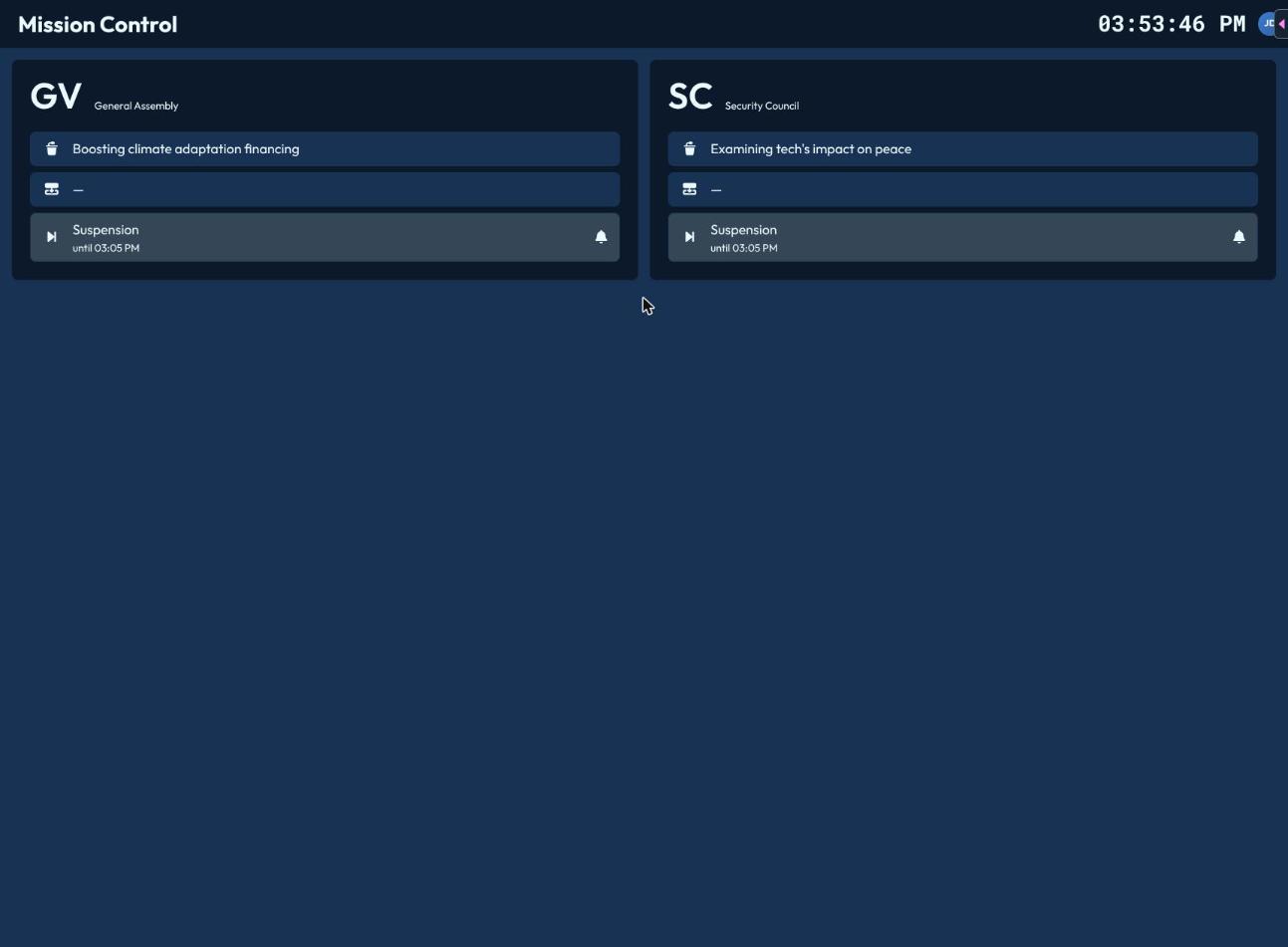
Open your conference from the launcher. If you chair more than one committee, you'll land on a quick overview listing each one — its agenda item, active speaker (if any), and status — click a committee to open its chair interface.
Navigation
Every chair page is reachable via keyboard shortcut:
| Page | Shortcut |
|---|---|
| Setup | Alt+1 |
| Presence | Alt+2 |
| Speakers List | Alt+3 |
| Voting | Alt+4 |
| Resolutions | Alt+5 |
If your committee has a draft resolution currently active, an extra "Active Draft Resolution" entry appears too. Hover any navigation item to see its keyboard shortcut. If you have access to more than one committee, you can switch between them from the avatar menu.
Global shortcuts
Two things are reachable from any chair page, without navigating away:
- Alt+P — open (or refocus) the presentation window, the shared screen for the room's projector.
- Alt+S — open the Status changer.
- Alt+D — open the State of Debate changer.
Automatic alerts
CHASE watches your committee for you and toasts you when something needs attention:
- When a status you set with a duration (e.g. "10-minute caucus") runs out.
- When a speakers list or Point of Information list runs into overtime.
Your first session, in order
- Committee Setup — check your settings before the room fills up.
- Roll Call & Attendance — establish who's present and quorum.
- Agenda & State of Debate — set what's being discussed and the committee's status.
- Running the Speakers List — open the floor.
- Running Votes — whenever the committee needs to decide something.
- Managing Resolutions — if your committee drafts and adopts resolutions.