Writing & Editing Resolutions
Starting a new paper
From your committee's papers list, click "New Working Paper" to create one. You'll need an active agenda item first — if none is set, CHASE will tell you to ask the chair to select one before you can start.
The collaborative editor
Opening a working paper puts you in a live, shared text editor — everyone with access edits the same document in real time, and you'll see other editors' presence indicated live. A sync status badge shows whether your changes are saved and up to date; if you go offline, it'll tell you, and your edits sync automatically once you're back.
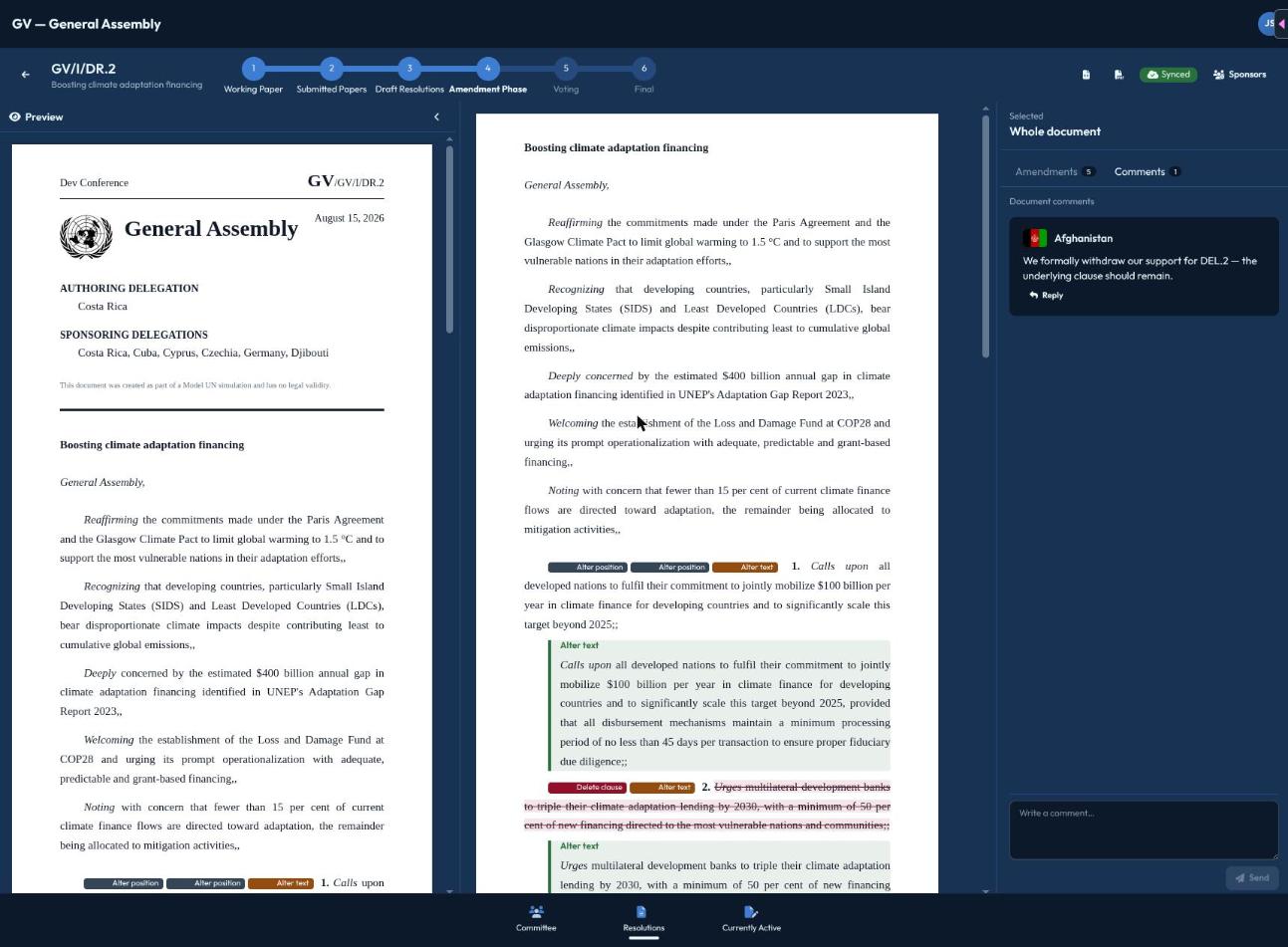
The editor structures your document the way a resolution is normally structured — a preamble section and numbered operative clauses — with a toggleable preview panel so you can check how the formatted document will actually look while you write.
Submitting
Once you're happy with the working paper, click Submit (only visible to the creator/co-editors, and only while it's still a Working Paper). You'll be asked to confirm — submitting locks the document from further editing and makes it visible to the whole committee as a Submitted paper, ready to be sponsored.
Submitting is a one-way door for editing — double-check the text first. If you need to keep working on something before it's fully locked in, hold off submitting until you're sure.
Exporting
From the paper view you can export the document as PDF or Typst source at any stage, for printing or sharing outside CHASE.
Discussing the text
A Comments panel lets you discuss the document — either as general document-level comments, or attached to a specific clause (select a clause to switch the panel to comments on just that clause). Replies are threaded one level deep. You can delete your own comments at any time.