Committee Overview & Status
The committee overview grid
After opening a conference from the launcher, you land on the Committee Overview — a grid of every committee in that conference. Each tile shows the committee's name, abbreviation, and current status at a glance, so you can quickly find where you need to be without opening each one.
Understanding committee status
Chairs move a committee through five statuses over the course of a session. As a participant, the status tells you what kind of interaction is expected of you right now:
| Status | What it means for you |
|---|---|
| Formal Debate | The general speakers list is running. Delegates can request the floor and speeches happen one at a time. |
| Moderated Caucus | A structured, chair-set discussion on a specific sub-topic, with its own speaker queue and shorter speaking times. |
| Unmoderated Caucus (Informal) | Free-form time for delegates to negotiate directly — no speakers list is active. |
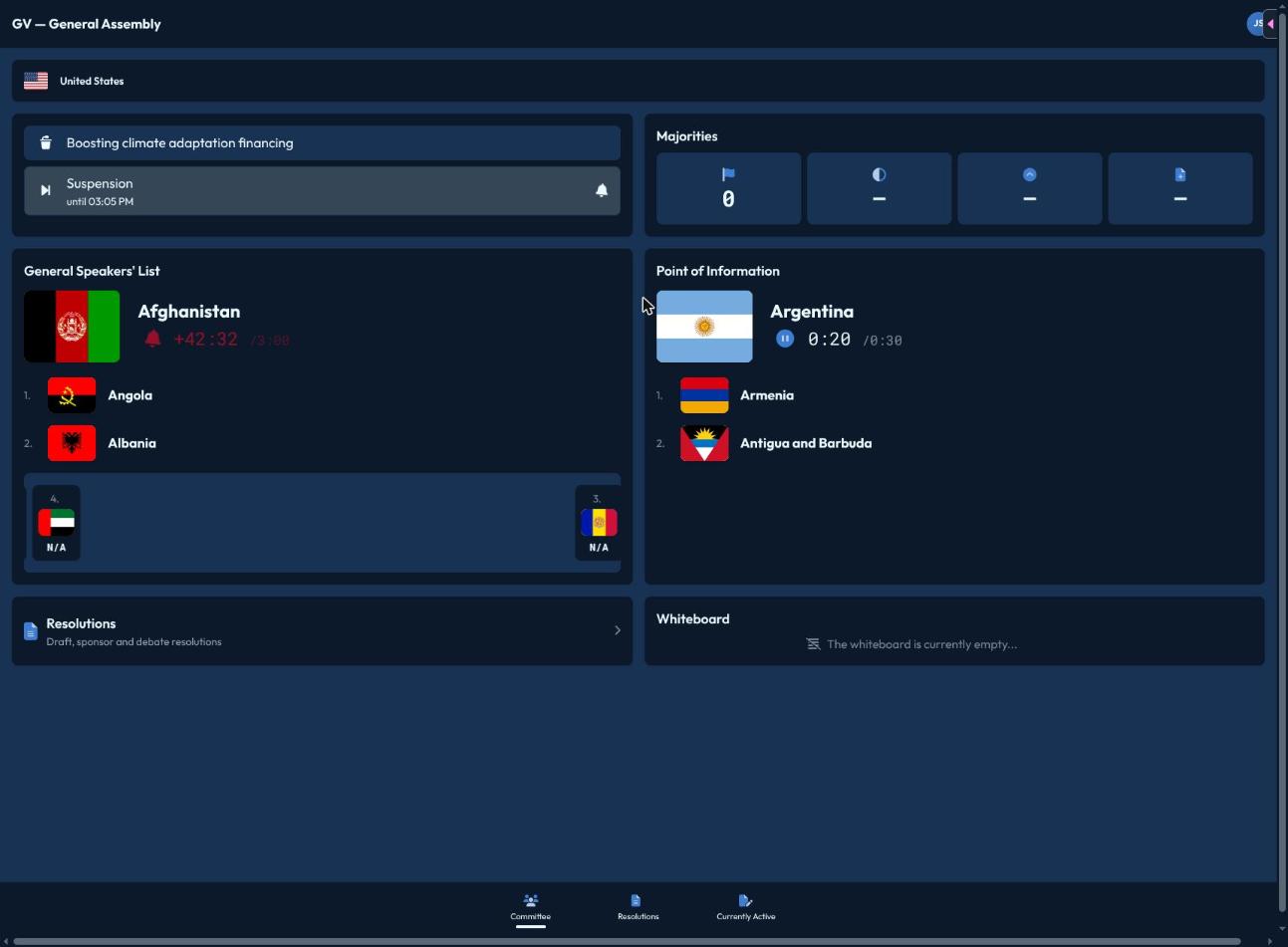
| Suspension | The session is paused (e.g. a break). Nothing is expected of you until it resumes. |
| Pause | A brief hold, often between agenda items or while the chair sets something up. |
Each status can carry a headline (e.g. the caucus topic) and a countdown if the chair set a duration — both shown on your dashboard.
Agenda items
A committee can have multiple items on its agenda; only one is active at a time. The active agenda item's title is shown on your dashboard and drives which speakers list, resolutions, and votes are currently relevant.
The shared presentation screen
Most committee rooms display a shared presentation view on a projector — this is not something you interact with directly, but it's helpful to know what it shows, since it's the room's shared source of truth:
- The current speaker and their remaining time
- The speakers queue
- Regional group / bloc breakdowns, if enabled
- The active resolution (during resolution work) or roll call / voting results, depending on what the chair is running
If you're ever unsure what's currently happening, glance at the projector — it reflects the same live status your own dashboard shows.
Majorities at a glance
Your dashboard's Majorities card shows, based on who's currently marked present, how many votes are needed for:
- A simple majority (more in favor than against)
- An absolute majority (more than half of all present)
- A two-thirds majority
These numbers update automatically as delegates check in or leave, so they always reflect the room as it stands right now.