Erste Schritte als Admin
Zwei Ebenen von „Admin"
CHASE unterscheidet zwischen:
- Konferenz-Admin — die Rolle
Admin, die einer bestimmten Konferenz zugewiesen wird (über Benutzer & Rollen). Gewährt vollen Konfigurationszugriff auf Mission Control dieser einen Konferenz. - Global-Admin — ein plattformweiter Admin, eingerichtet von der Person, die deine CHASE-Instanz betreibt. Global-Admins können zusätzlich komplett neue Konferenzen anlegen (per Import oder von Grund auf) und jede Konferenz konfigurieren, nicht nur solche, denen sie explizit zugewiesen wurden.
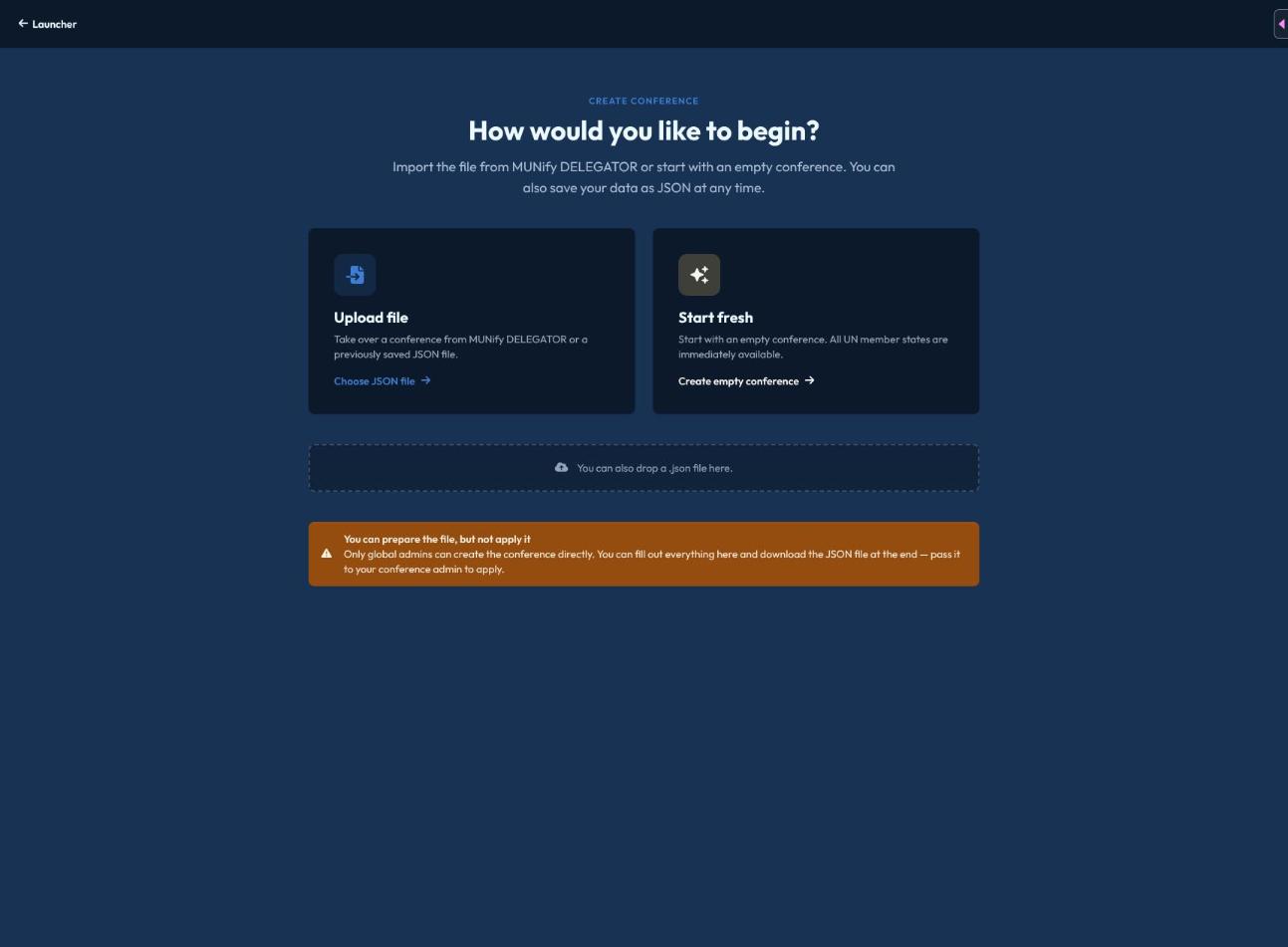
Wenn du keine Option zum Anlegen einer Konferenz findest, hast du wahrscheinlich Konferenz-Admin-Rechte für eine bestehende Konferenz, bist aber kein Global-Admin — wende dich an die Person, die eure Instanz verwaltet, damit sie die Konferenz anlegt oder dir Global-Admin-Rechte gibt.
Zugang zu Mission Control
Ein Admin-Konferenzeintrag im Launcher zeigt ein Zahnrad-Symbol — klicke darauf (oder öffne die Konferenz und nutze das Menü), um zu Mission Control und dann zur Konfiguration zu gelangen, die in folgende Reiter unterteilt ist:
- Allgemein — konferenzweite Einstellungen (siehe Konferenzeinstellungen)
- Benutzer — Personen einladen und Rollen zuweisen (siehe Benutzer & Rollen)
- Gremien — Gremien anlegen (siehe Gremien & Delegationen)
- Delegationen — Länder/Delegationen hinzufügen
- Nichtstaatliche Akteure — NAs und UN-Akteure konfigurieren (siehe NA-Verwaltung)
Eine Konferenz anlegen
Neue Konferenzen werden über denselben Import-Ablauf angelegt, der auch zum Übernehmen von Daten aus MUNify DELEGATOR verwendet wird — siehe Import aus DELEGATOR. Du kannst entweder einen echten DELEGATOR-Export importieren oder mit einer leeren Vorlage beginnen und alles von Hand ausfüllen; beide Wege laufen über denselben schrittweisen Assistenten.